> For the complete documentation index, see [llms.txt](https://kbase.whitelabel-loyalty.com/product/llms.txt). Markdown versions of documentation pages are available by appending `.md` to page URLs; this page is available as [Markdown](https://kbase.whitelabel-loyalty.com/product/interfaces/white-label-interfaces/reward-artwork-guidelines.md).
# Reward artwork guidelines
{% hint style="info" %}
This article explains the dimensions and formats recommended for rewards, venues, badges and tiles when using a White Label Loyalty interface.
If you're building your own interface, the dimensions of your artwork are determined by your own interface's design and the instructions here are not relevant to you.
{% endhint %}
## About reward artwork
Artwork can be added to several resources in the Loyalty Engine:
* Reward artwork, representing individual [rewards](/product/loyalty-engine/rewards-and-points/rewards.md)
* Reward category artwork, representing individual [reward categories](/product/loyalty-engine/rewards-and-points/rewards/reward-details.md#reward-configuration)
* Badge artwork, representing individual [badges](/product/modules/badges.md)
* Tier artwork, representing individual [tiers](/product/loyalty-engine/users/tiers.md)
* Venue artwork, representing individual [venues](/product/modules/venues.md)
* Tile artwork, used on Content, Points and Banner [tiles](/product/interfaces/white-label-interfaces/loyalty-tiles.md)
You can use the Loyalty Console to upload artwork directly or supply a direct link to the artwork stored on your own servers.
### Designing your reward artwork
A common question we get is *"what dimensions and format should our designers use for artwork in WLL?"*.
Well, the answer to that is it depends on the context in which your artwork is shown to end-users – and that depends on whether you are building your own interface and integrating it with our API, or using one of our pre-built white label interfaces.
***
## Artwork for self-built interfaces
If you're building your own interface, the dimensions for your artwork are up-to you. It's determined by your own user interface design.
You might show reward artwork as a 1:1 square, or a 4:3 or 16:9 rectangle. Your UI designer is ultimately responsible for deciding how each resource (reward, venue, badge etc.) is presented in your user interface.
### Guidelines
#### Keep the file size small
Try to use JPG files where possible (if transparency isn't needed), and aim for a file size of no greater than 200kb. Whilst you can upload bigger files, this can increase load times and result in a bad experience for your users.
#### Consider where the artwork is used
Only one piece of artwork can be assigned to each resource, so consider carefully the various contexts in which the artwork may be shown. For example, you might show the artwork associated with a reward in both a list of rewards for the user to browse through, and an individual reward detail page (see example below).
As such, you should try to use the same or similar dimensions everywhere you show a particular type of artwork – and if not, create your own internal guidelines for relevant bleed areas and safe spaces.
The below **example interface** shows how a single piece of reward artwork can be displayed in multiple contexts. In this case, the artwork file is 4:3 dimension and the safe space is considered the central 1:1 space – this ensures the main content can be seen even if the artwork is cropped by the interface to 1:1.
{% columns %}
{% column %}
**Artwork file**
The artwork represents a reward which is an IKEA gift voucher.
{% endcolumn %}
{% column %}
**Artwork show in reward list**
The artwork is shown in a reward list (for a user to browse and select) at a 1:1 aspect ratio.
{% endcolumn %}
{% column %}
**Artwork shown on reward**
The artwork is also shown on a reward page (for the user to learn more and get) at an aspect ratio that varies depending on viewport but is anywhere between 1:1 and 4:3,
{% endcolumn %}
{% endcolumns %}
***
## Artwork for the Loyalty Microsite & Loyalty Mobile App
### Reward artwork
Primarily displayed at a 1:1 ratio across both the Loyalty Mobile App and Loyalty Microsite.
**Suggested Asset Metrics:**
`@2x` `H600px x W800px` `PNG` `<200kb` `Content within central 500px² area`
Reward artwork preview
### Reward category artwork
Primarily displayed at a 2.3:1 ratio on in the Loyalty Mobile App and 1:1 ratio in the Loyalty Microsite.
If you're utilising both our Loyalty Microsite & Mobile App, you should design your **reward category** artwork in a way which will look good on both.
#### **Suggested Asset Metrics if using Mobile App only:**
`@2x` `H568 px` `W1500 px` `PNG` `<800kb`
#### **Suggested Asset Metrics if using Microsite only:**
`@2x` `H600 px` `W600 px` `PNG` `<400kb`
#### **Suggested Asset Metrics if using both the Loyalty Microsite & Mobile App:**
`@2x` `H568 px` `W1500 px` `PNG` `<800kb` `Content within central 500px² area`
### Artwork preview
{% tabs %}
{% tab title="Loyalty Microsite" %}
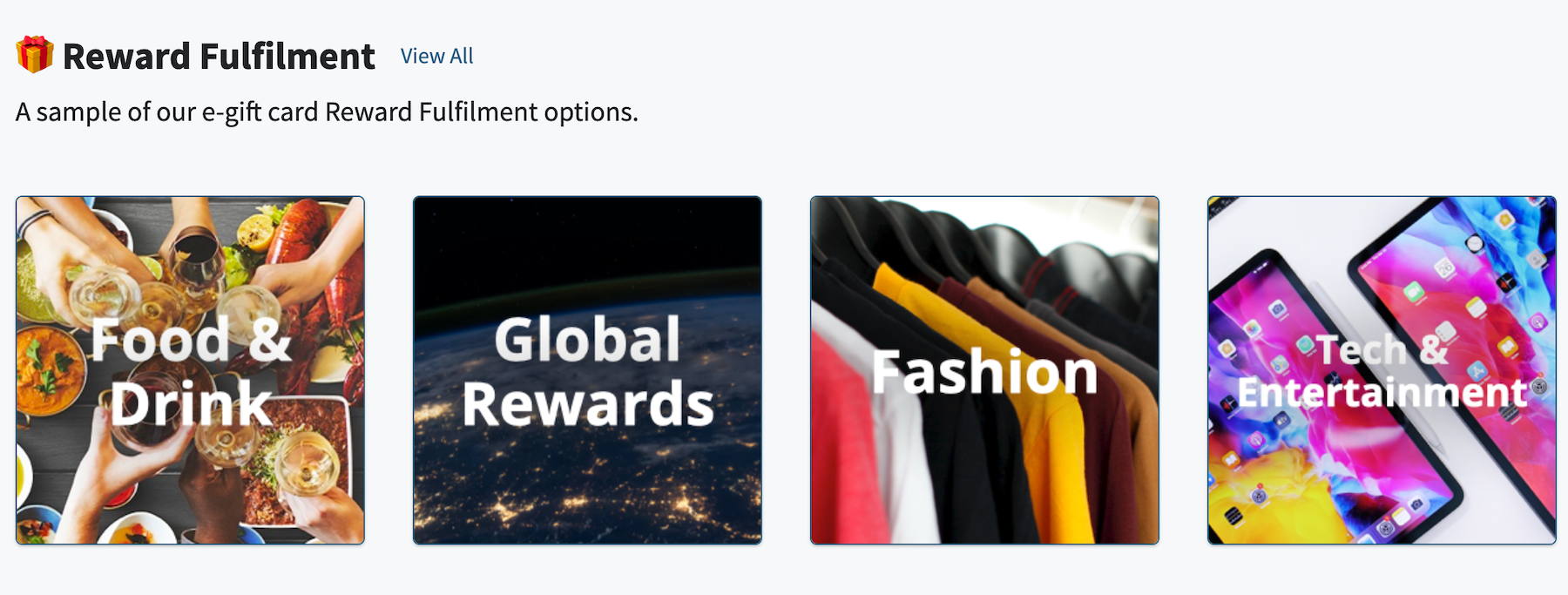
In this preview image below, taken from the Loyalty Microsite:
* 'Reward Fulfilment' is a parent category - no artwork is shown for top-level parents in the Microsite. 'Food & Drink', 'Global Rewards' etc. are all subcategories of the parent category
* the text shown on the artwork from the subcategories is 'bedded in' to the image - i.e. it is not automatically added by the Microsite, it is part of the specified category artwork image itself
Reward Categories in the Loyalty Microsite
{% endtab %}
{% tab title="Loyalty Mobile App" %}
{% endtab %}
{% endtabs %}
***
## Artwork for Tiles
---
# Agent Instructions
This documentation is published with GitBook. GitBook is the documentation platform designed so that both humans and AI agents can read, navigate, and reason over technical content effectively. Learn more at gitbook.com.
## Querying This Documentation
If you need additional information that is not directly available in this page, you can query the documentation dynamically by asking a question.
Perform an HTTP GET request on the current page URL with the `ask` query parameter, and the optional `goal` query parameter:
```
GET https://kbase.whitelabel-loyalty.com/product/interfaces/white-label-interfaces/reward-artwork-guidelines.md?ask=&goal=
```
`ask` is the immediate question: it should be specific, self-contained, and written in natural language.
`goal` is optional and describes the broader end goal you are ultimately trying to accomplish on behalf of the user. GitBook uses it to tailor the answer towards what is most useful for that goal.
The response will contain a direct answer to the question and relevant excerpts and sources from the documentation.
Use this mechanism when the answer is not explicitly present in the current page, you need clarification or additional context, or you want to retrieve related documentation sections.